Export video and evidence
Updated 2026-10-26
Save a clip, lock footage as evidence, export a whole night, share a link, and prove a file has not changed.
There are two kinds of export. A clip is a file you save to your computer. Evidence is footage locked in the evidence vault on the server, where retention never deletes it. You need a role that may export; without it you can still see cases but not make them.
Export a clip from Playback
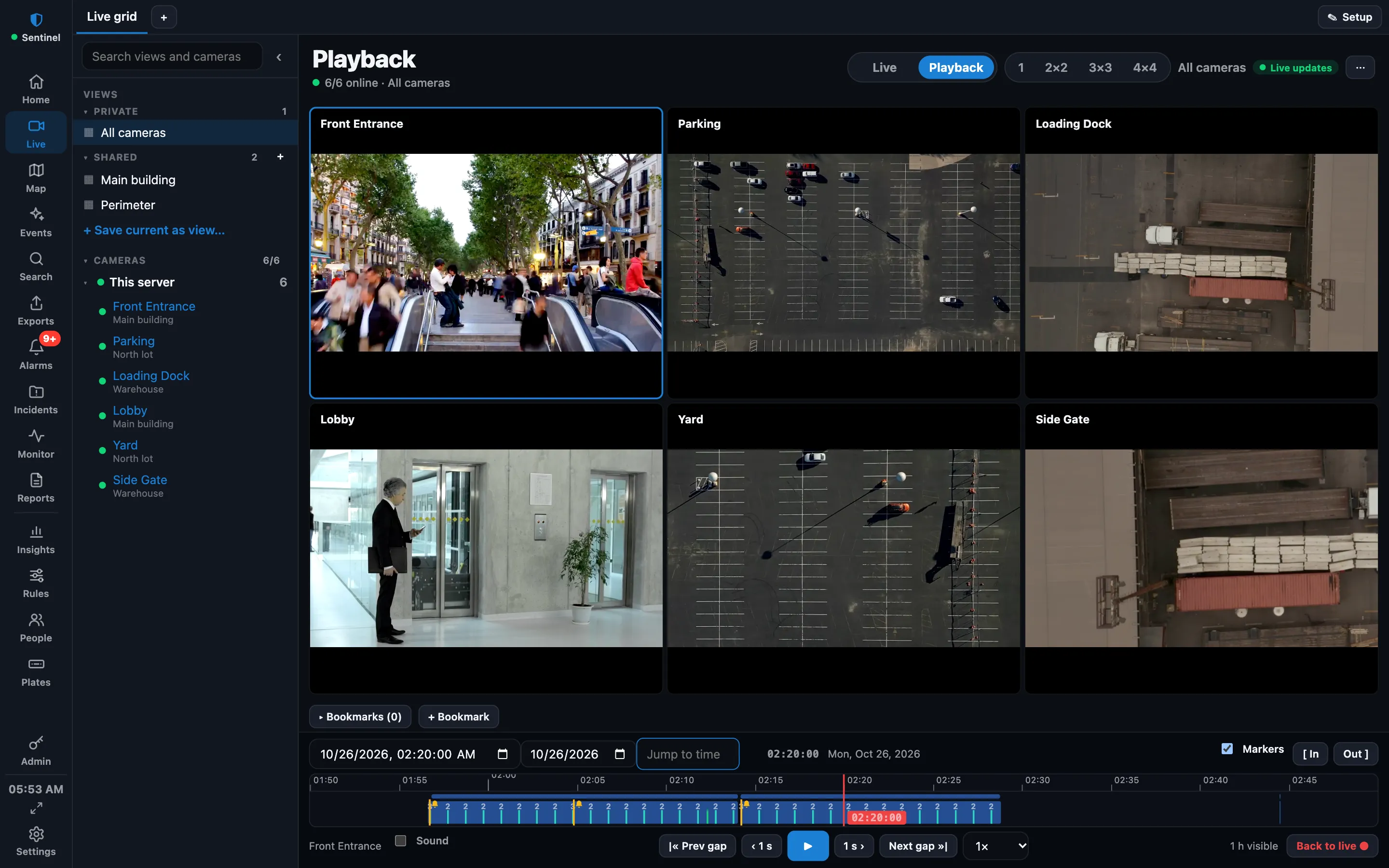
- In Live → Playback, move to the start and click [ In, then to the end and click Out ]. Or press [ and ].
- Click Export…. The range is saved as an MP4. A single export is limited to 30 minutes; use a long export for more.
- Or click Lock as evidence… to keep the range in the Exports tab instead.
On the Mac, Export… opens Export Clips: choose the time range and cameras, and each camera becomes one MP4 with a manifest.json listing SHA-256 hashes. Show in Finder opens the folder, and Lock as Evidence… files the same range as evidence.
On a camera that records low-res all day and full-res on events, one export can span both and comes out as a single clip.
Lock footage as evidence
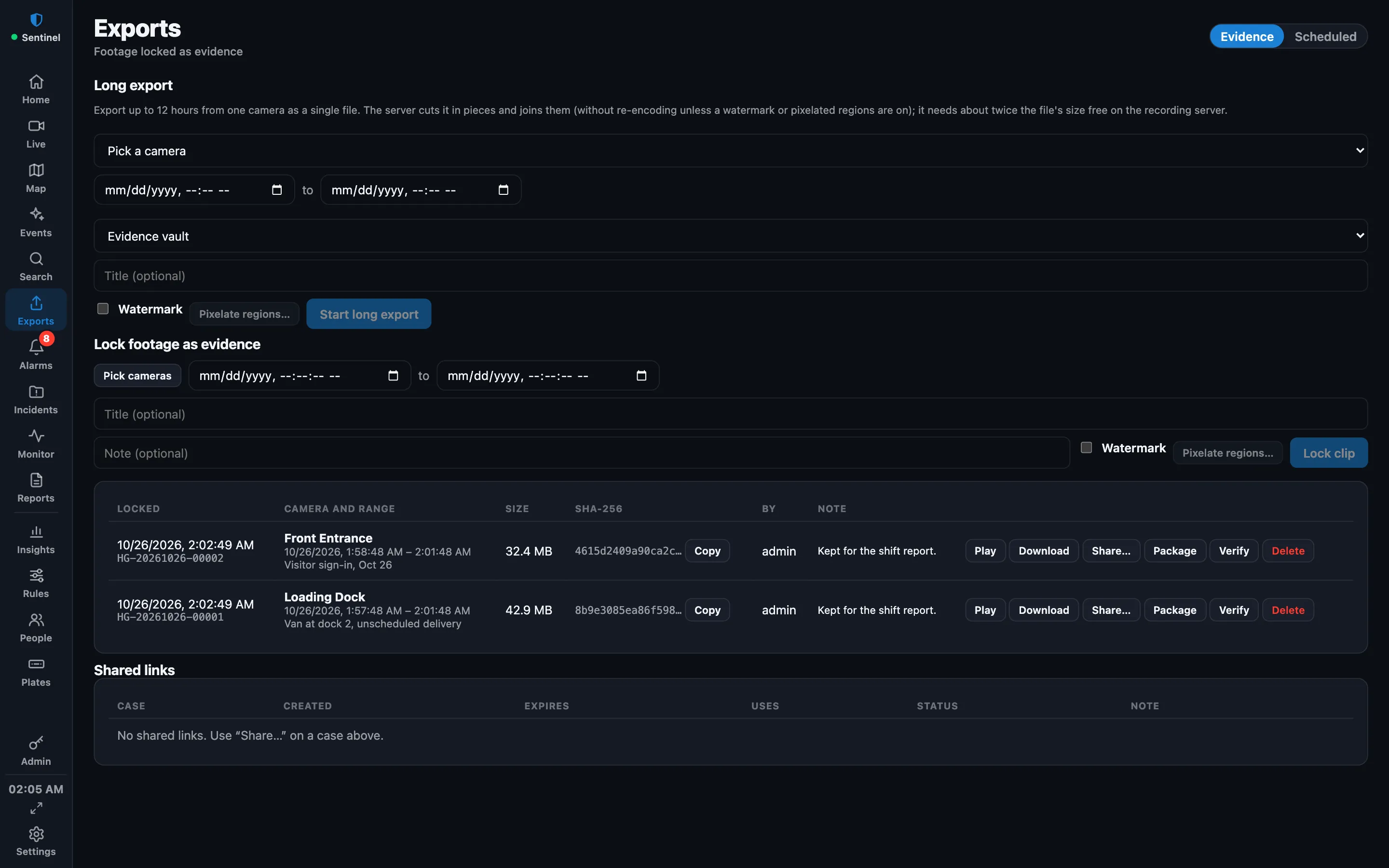
Open the Exports tab. Under Lock footage as evidence:
- Click Pick cameras and tick one or more.
- Set From and To, and add an optional title and note.
- Tick Watermark to burn who exported the clip, when, and the case id into the video. Or click Pixelate regions… and drag rectangles over anything that must be hidden; this needs exactly one camera. Both re-encode the clip, so it takes longer. Cameras with privacy masks are re-encoded too, to burn the masks in.
- Click Lock clip (with several cameras the button counts the clips).
You can also keep the footage behind an alarm from the Alarms tab with Lock evidence.
Work with a case
Each evidence case shows the camera and range, its size, a SHA-256 fingerprint, who locked it and the note. The buttons on a row:
| Button | What it does |
|---|---|
| Play | Plays the video in the page (for large files, download instead). |
| Download | Saves the video file. |
| Share… | Makes a link that expires and that people on your network can open. Choose when it expires, a maximum number of uses and a note shown on the page. The link is shown in full only once. Shared links lists the links that can still be opened, and each can be revoked. |
| Package | Saves a zip with the video, its manifest and an offline player that checks the video against its fingerprint. Hand this to a lawyer or the police. |
| Verify | Checks the file on the server against its recorded SHA-256. A tick means it is unchanged; a cross means it was changed or is missing. |
| Delete | Removes the case and its video for good. Only for roles that may delete evidence. |
Long export: a whole night
For more than a single clip, use Long export at the top of the Exports tab. Pick a camera and a range of up to 12 hours, choose a Destination of Evidence vault or Download, and start it. The server cuts the range in pieces and joins them. Progress shows on the page, and the download appears when it is done.
Scheduled exports
On the Scheduled sub-tab, an export can run by itself: name it, pick a camera, a time window (up to 12 hours, and it may run overnight) and the days it starts on. Last run shows when it last ran.
Videos sent from an iPhone
With Sentinel Cloud, a phone can send a video into the vault. It shows up as a case marked as uploaded from an iPhone, and works like any other. See Use an iPhone as a camera. Locked clips are also copied offsite with Cloud: What Sentinel Cloud sends and stores.
More guides, including Sentinel Cloud setup and users and roles, are in the knowledge base for signed-in users.