Guides › Everyday use
Alarm rules and iPhone notifications
Updated 2026-10-22
Decide which alarms reach your phone, set quiet hours, and send a test notification.
Each camera's settings decide whether an alarm is raised. Alarm Rules decide what happens next. With no rules, alarms show on the dashboard and nothing is pushed.
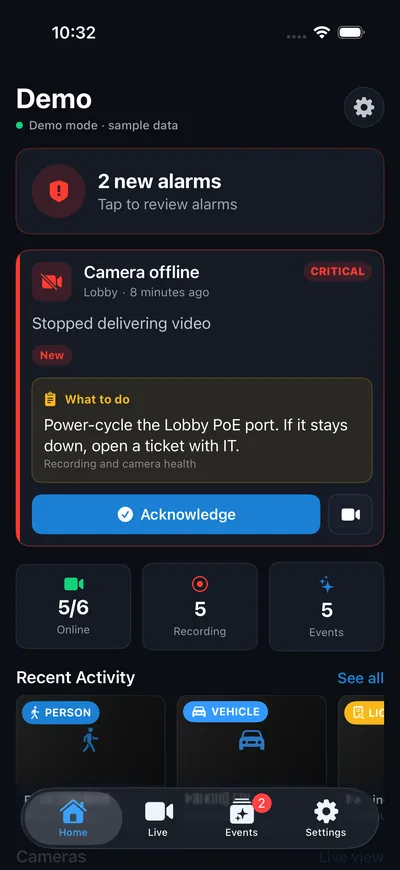
Send alarms to your phone
- Open Alarm Rules and create a rule, or edit one.
- Filter by camera, alarm kind, minimum severity, hours and days. Hours use the server's time;
22:00–06:00runs overnight. - Set the rule to Dashboard + iPhone push and save.
Choose how pushes are delivered
In Admin → Rules and Events → Notifications:
- Sentinel Cloud: through your Cloud subscription. Chosen automatically when you link a plan that includes push.
- Sentinel push relay: the free relay for the App Store app.
- Direct to Apple: only if you build Sentinel Mobile yourself with your own APNs key.
Click Send test push on the same page. If the test arrives but alarms don't, the rule is the missing piece.
Quiet hours and bursts
- Quiet hours let only Critical alarms through during the window you set.
- A burst of alarms from one camera sends at most one notification a minute.
More guides, including Sentinel Cloud setup and users and roles, are in the knowledge base for signed-in users.