Install Sentinel on a Mac
Updated 2026-10-22
Download Sentinel Operator, run the server on the same Mac, and create the first administrator.
On a Mac, one download gives you both halves: Sentinel Operator, the app you watch from, and the Sentinel server that records your cameras.
1. Install the app
- Sign in at sentvms.com and download Sentinel Operator for Mac.
- Open the downloaded zip and drag Sentinel Operator into your Applications folder.
- Open it from Applications or Launchpad. It is signed and notarized by Apple, so it opens without warnings.
2. Run the server on this Mac
- On the first screen choose Run a server on this Mac.
- macOS asks for an administrator's password. The server installs as a background service that starts with the Mac.
- When it is up, create the first administrator: pick a user name and a strong password. This account manages everything else.
If you already run a Sentinel server on another machine, choose to connect to it instead and enter its address, for example http://192.168.1.20:8090.
Where things live
| What | Where |
|---|---|
| Web dashboard | http://127.0.0.1:8090 |
| Recordings and settings | /Library/Application Support/Sentinel |
| Server log | /Library/Logs/Sentinel/sentinel.log |
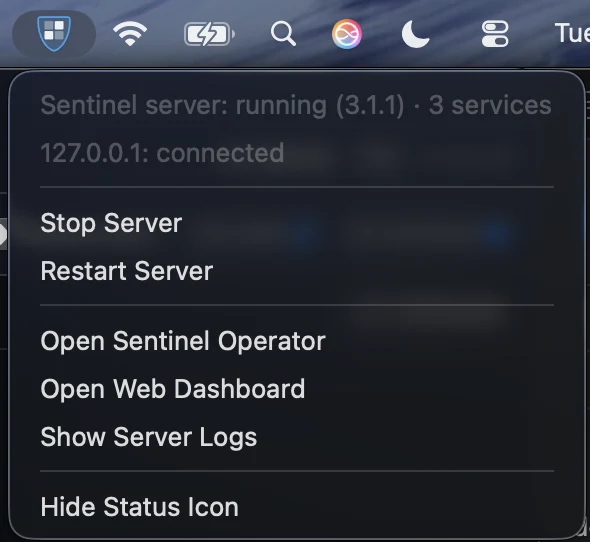
Keep the Mac awake
A sleeping Mac stops recording and drops remote viewers. In System Settings → Energy (or Battery → Options on a laptop), turn on Prevent automatic sleeping when the display is off. A laptop on battery may still sleep; keep it plugged in.
Next: Add your cameras.
More guides, including Sentinel Cloud setup and users and roles, are in the knowledge base for signed-in users.