Guides › Getting started
Add your cameras
Updated 2026-10-22
Find cameras on the network with a scan, or add one by its RTSP address, and choose what to record.
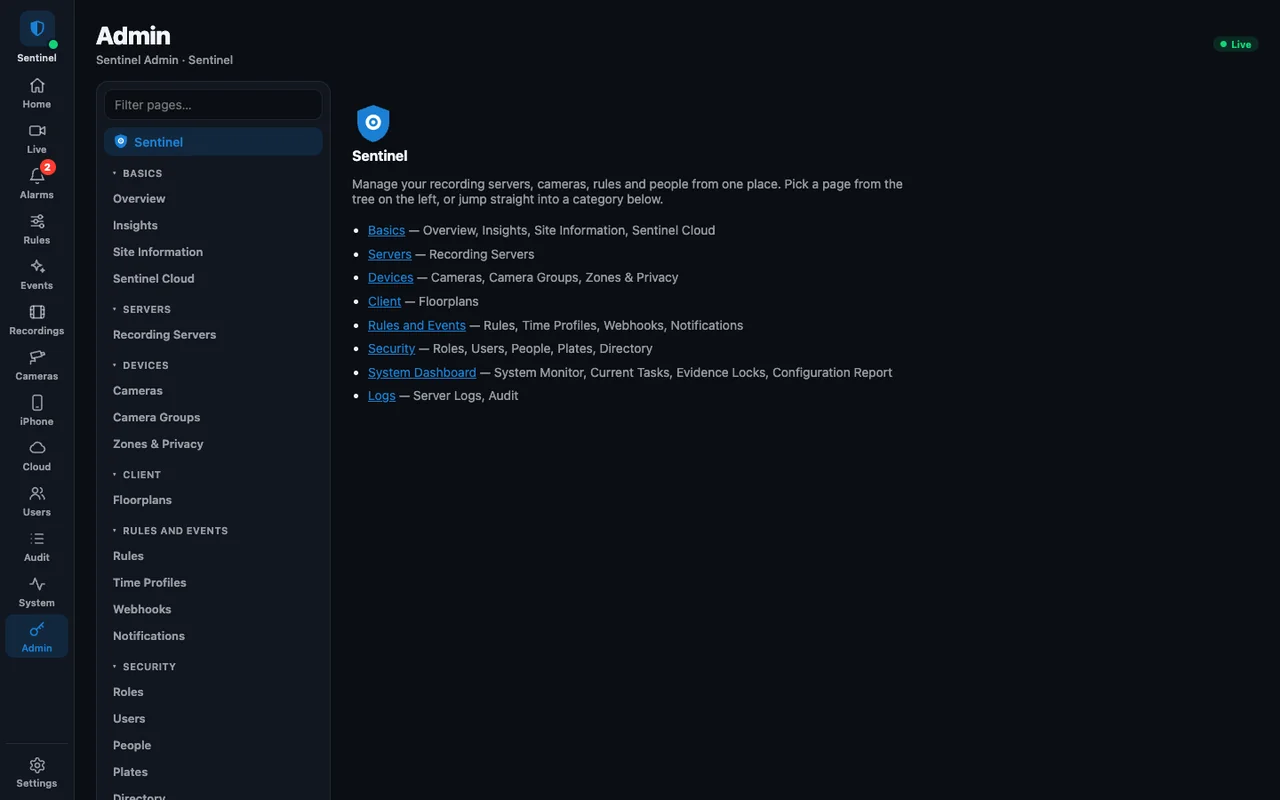
Cameras are added in Sentinel Admin, where you also choose which recording server records them. The Cameras page in the dashboard edits cameras you already have.
Scan the network
- Open Admin → Devices → Cameras.
- Choose Scan network. Sentinel lists the ONVIF cameras it finds.
- Pick one, enter the camera's user name and password, and Sentinel reads its streams.
Or add by address
Choose Add camera and paste the camera's RTSP address, for example rtsp://192.168.1.20:554/stream1. The camera's manual or app shows the exact path.
Choose the streams
- Record this stream: the full-quality main stream.
- Live view stream: a lower-resolution sub-stream saves CPU and bandwidth. Budget cameras such as Tapo allow only two connections, so leave it on Same as recording if recording drops out.
- Record 24/7 keeps continuous footage; turn it off to record only around events.
- Motion detection sensitivity decides how easily motion raises an event.
Several recording servers
On a site with more than one recording server, Admin asks which server should record the camera. Pick the one on the same network as the camera.
More guides, including Sentinel Cloud setup and users and roles, are in the knowledge base for signed-in users.